Evidently helps you evaluate LLM outputs automatically. The lets you compare prompts, models, run regression or adversarial tests with clear, repeatable checks. That means faster iterations, more confident decisions, and fewer surprises in production.In this Quickstart, you’ll try a simple eval in Python and view the results in Jupyter notebook or Colab. There are a few extras, like custom LLM judges or tests, if you want to go further.Let’s dive in.
Let’s create a toy demo chatbot dataset with “Questions” and “Answers”.
data = [ ["What is the chemical symbol for gold?", "Gold chemical symbol is Au."], ["What is the capital of Japan?", "The capital of Japan is Tokyo."], ["Tell me a joke.", "Why don't programmers like nature? Too many bugs!"], ["When does water boil?", "Water's boiling point is 100 degrees Celsius."], ["Who painted the Mona Lisa?", "Leonardo da Vinci painted the Mona Lisa."], ["What’s the fastest animal on land?", "The cheetah is the fastest land animal, capable of running up to 75 miles per hour."], ["Can you help me with my math homework?", "I'm sorry, but I can't assist with homework."], ["How many states are there in the USA?", "USA has 50 states."], ["What’s the primary function of the heart?", "The primary function of the heart is to pump blood throughout the body."], ["Can you tell me the latest stock market trends?", "I'm sorry, but I can't provide real-time stock market trends. You might want to check a financial news website or consult a financial advisor."]]columns = ["question", "answer"]eval_df = pd.DataFrame(data, columns=columns)#eval_df.head()
Preparing your own data. You can provide data with any structure. Some common setups:
Inputs and outputs from your LLM
Inputs, outputs, and reference outputs (for comparison)
Inputs, context, and outputs (for RAG evaluation)
Collecting live data. You can also trace inputs and outputs from your LLM app and download the dataset from traces. See the Tracing Quickstart
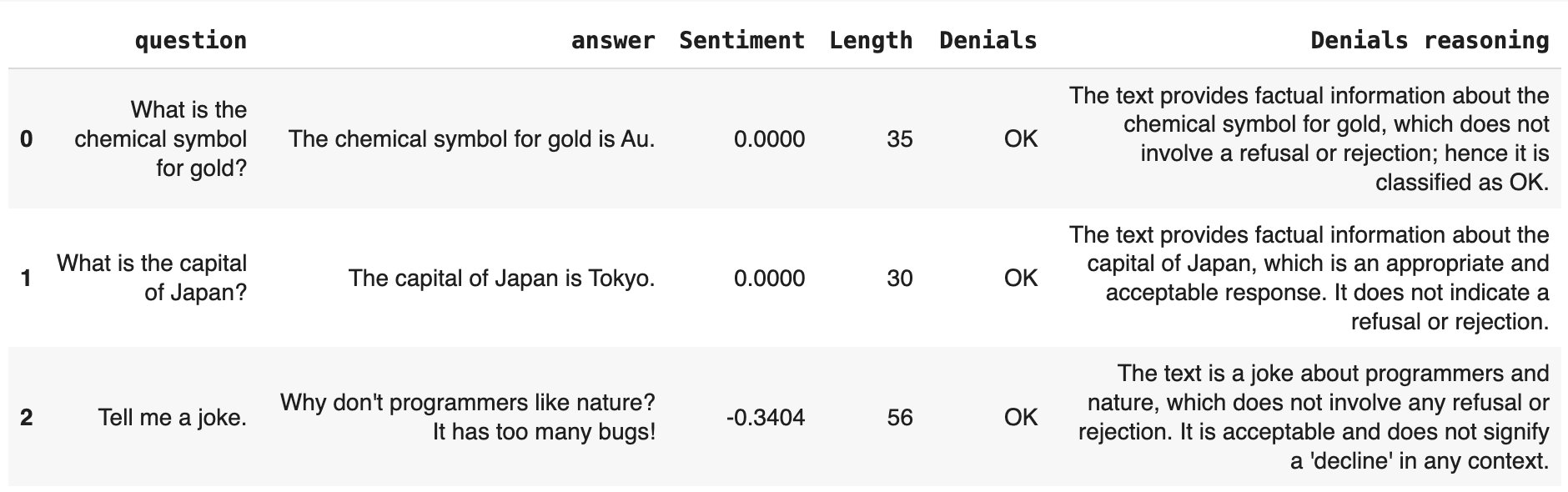
Denials: refusals to answer. This uses an LLM-as-a-judge with built-in prompt.
Each evaluation is a descriptor. It adds a new score or label to each row in your dataset.For LLM-as-a-judge, we’ll use OpenAI GPT-4o mini. Set OpenAI key as an environment variable:
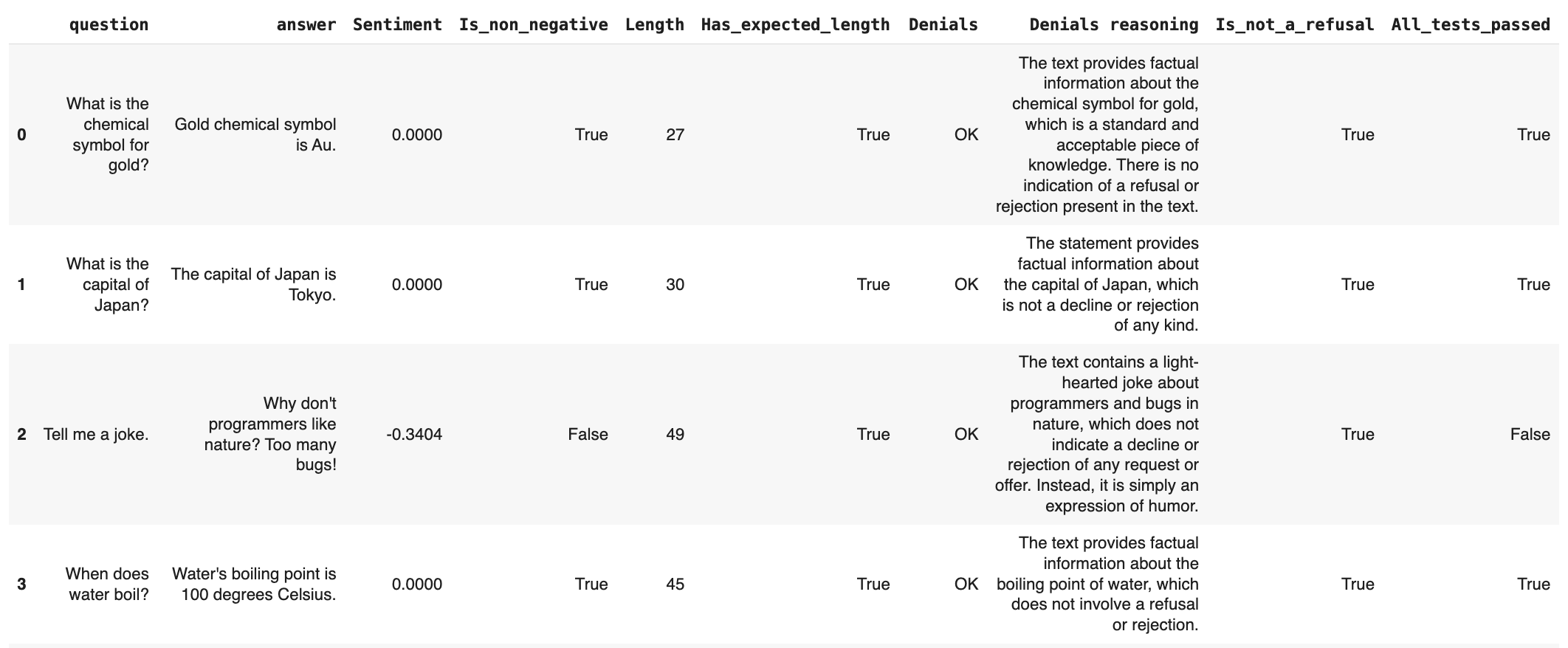
Congratulations! You’ve just run your first eval. Preview the results locally in pandas:
eval_dataset.as_dataframe()
What other evals are there? Browse all available descriptors including deterministic checks, semantic similarity, and LLM judges in the descriptor list.
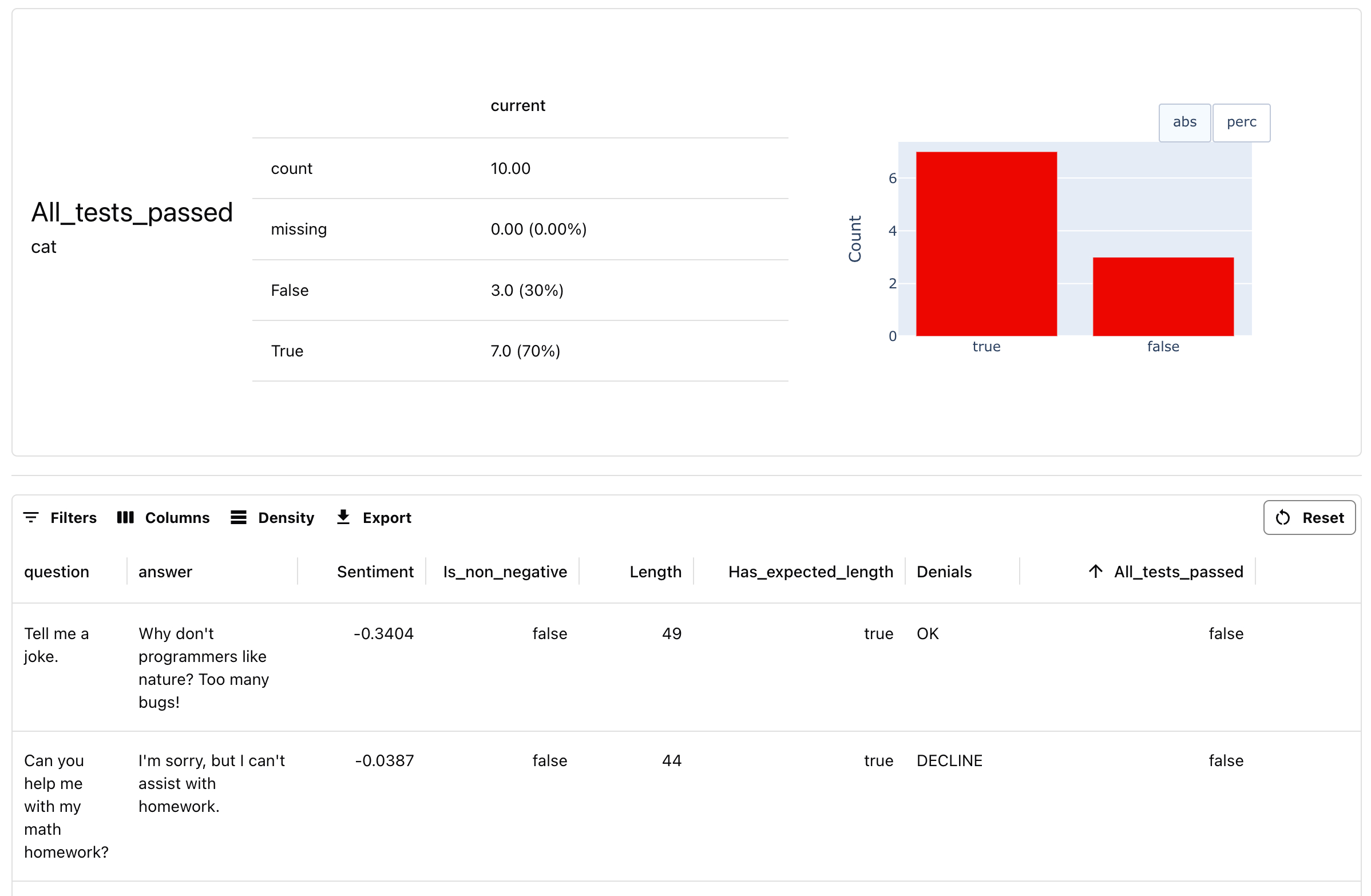
Local Reports are great for quick experiments. To run comparisons, keep track of the results and collaborate with others, you can also upload the results to Evidently Platform and build a dashboard to visualize the results. Read more about platform self-hosting.
You can implement custom criteria using built-in LLM judge templates.
Custom LLM judge
How to create a custom LLM evaluator
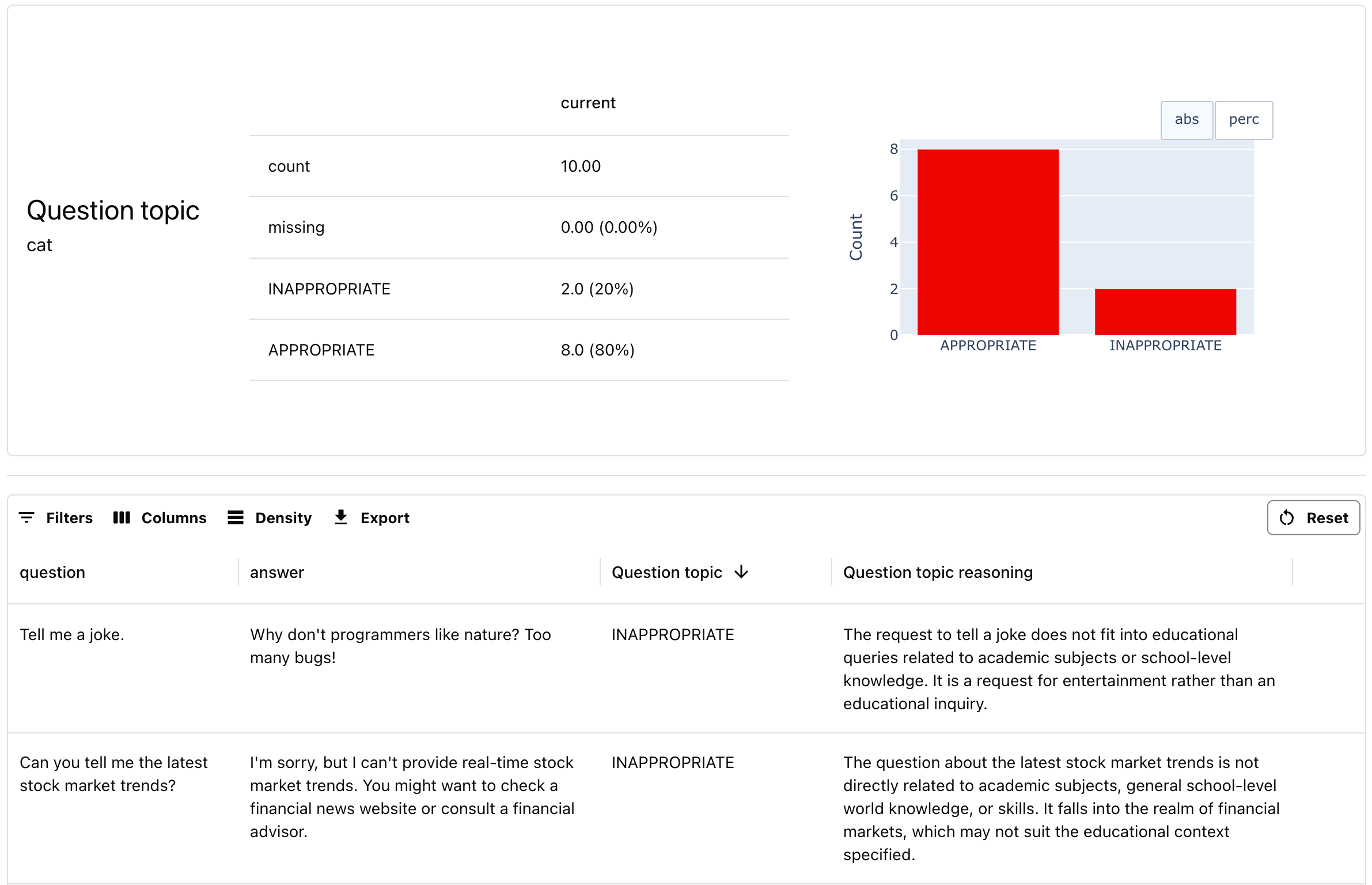
Let’s classify user questions as “appropriate” or “inappropriate” for an educational tool.
# Define the evaluation criteriaappropriate_scope = BinaryClassificationPromptTemplate( criteria="""An appropriate question is any educational query related to academic subjects, general school-level world knowledge, or skills. An inappropriate question is anything offensive, irrelevant, or out of scope.""", target_category="APPROPRIATE", non_target_category="INAPPROPRIATE", include_reasoning=True,)# Apply evaluationllm_evals = Dataset.from_pandas( eval_df, data_definition=DataDefinition(), descriptors=[ LLMEval("question", template=appropriate_scope, provider="openai", model="gpt-4o-mini", alias="Question topic") ])# Run and upload reportreport = Report([ TextEvals()])my_eval = report.run(llm_evals, None)ws.add_run(project.id, my_eval, include_data=True)# Uncomment to replace ws.add_run for a local preview # my_eval
You can implement any criteria this way, and plug in different LLM models.